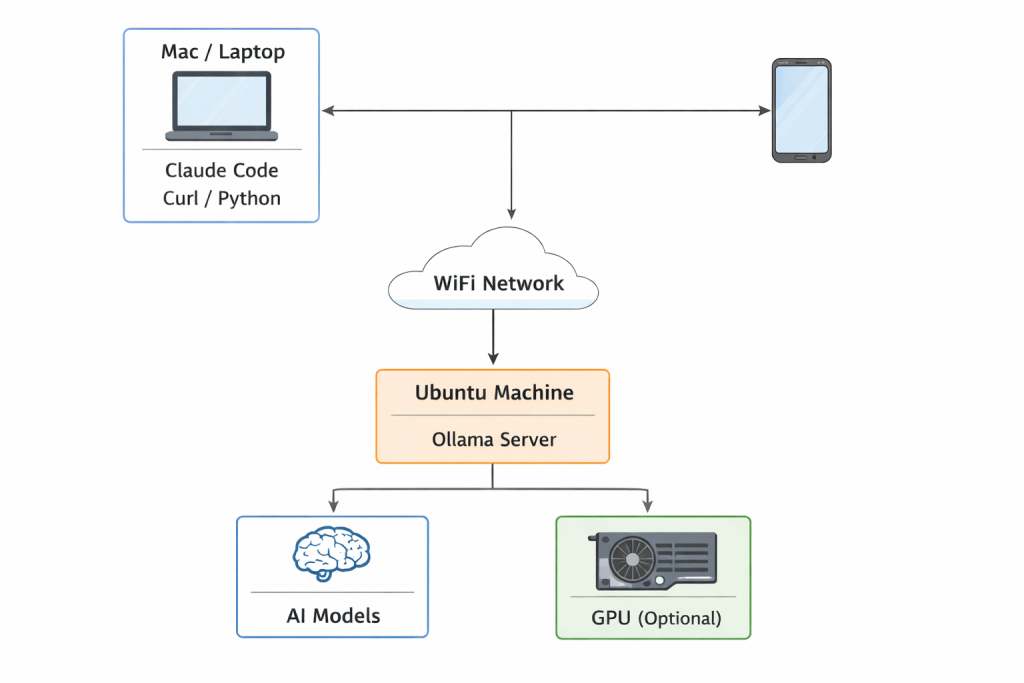
AI is no longer limited to cloud providers. In 2026, developers are increasingly running powerful AI models locally on old laptops, unused desktops, and home servers. In this guide, you’ll learn how to turn your old Ubuntu machine into a local AI server and access it from your laptop, Mac, or any device on the same WiFi network. Why do you need a local AI server because it is
- Faster
- Cheaper
- Private
- And surprisingly easy to set up
Prerequisite
- You should have Ubuntu installed on your older machine
- Ollama must be installed on you Ubuntu Machine
- All your devices who want to access AI server needs to be connected to Same Wifi
Why This Is Important in 2026
There are 3 massive trends happening right now
Shift from Cloud AI → Local AI
Cloud AI is expensive and slow for many workflows. Local AI provides:
- Zero API cost
- Low latency
- Full privacy
Old hardware is still powerful
Even a GPU like GTX 1660 (6GB VRAM) can run models like Qwen2.5, Phi-3, Llama 3
AI agents require persistent local models
New technologies are emerging very fast and they can work best with local AI servers
- OpenClaw
- Claude Code
- Cursor AI
Check Ollama is installed on your Ubuntu Machine
ollama --versionThis should return you the current Ollama version installed on you Ubuntu machine
Configure Ollama to Accept Network Connections from other device on same WiFi Network
By default, Ollama only works locally. We need to allow access from other devices. When you install Ollama on Ubuntu then it is installed using systemd configuration of Linux. You need to edit systemd configuration
sudo systemctl edit ollamaAdd the below configuration in file
[Service]
Environment="OLLAMA_HOST=0.0.0.0:11434"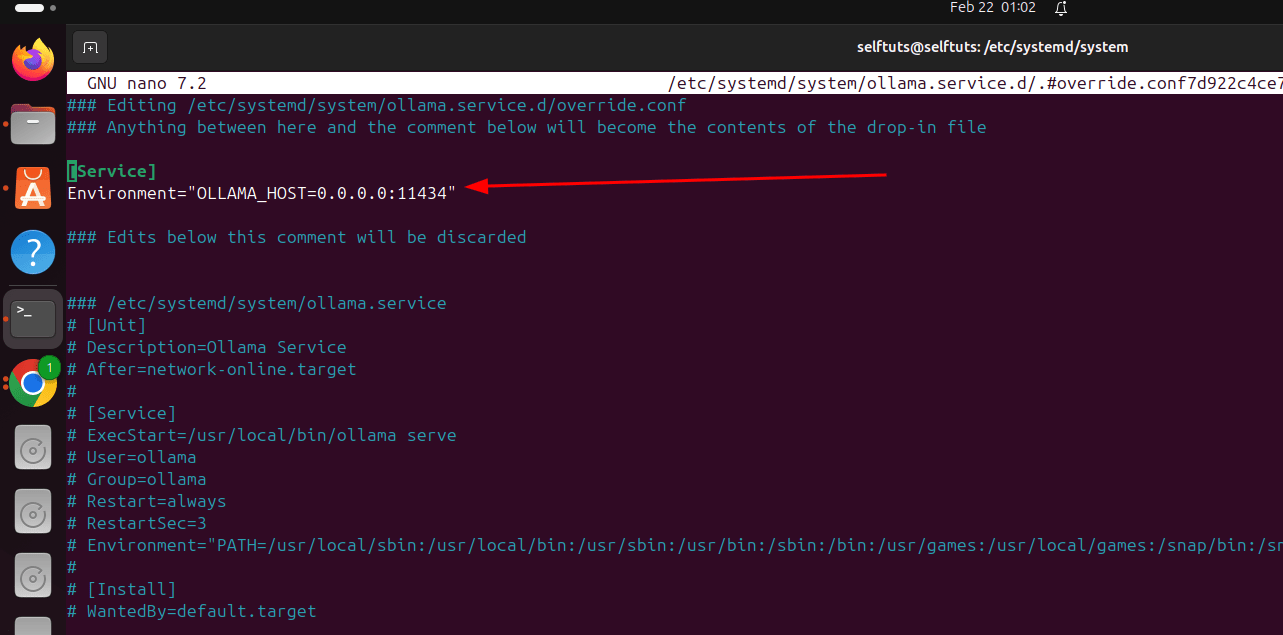
If the nano editor is opened then you can save and exit using
Ctrl + O
Enter
Ctrl + XReload and restart the daemon for systemd
sudo systemctl daemon-reexec
sudo systemctl daemon-reloadRestart Ollama to accept connection from outside
Now you need to restart the Ollama so that other machine from outside is able to access it
sudo systemctl restart ollamaNow check the status of Ollama
sudo systemctl status ollama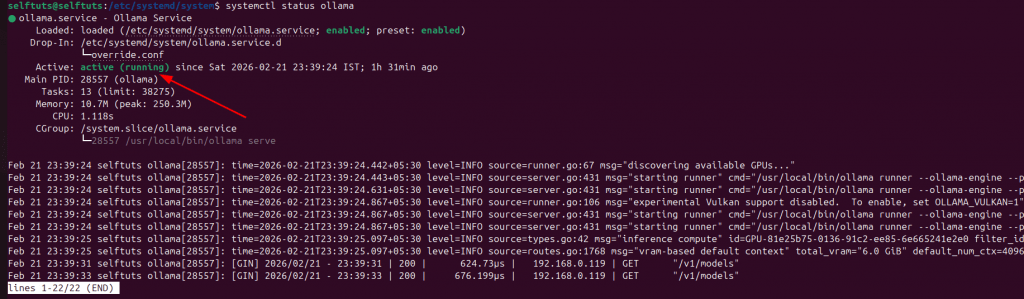
Find Your Ubuntu Machine IP Address
You need to find the IP address of your Ubuntu Machine such that it is accessed from other machines
ifconfig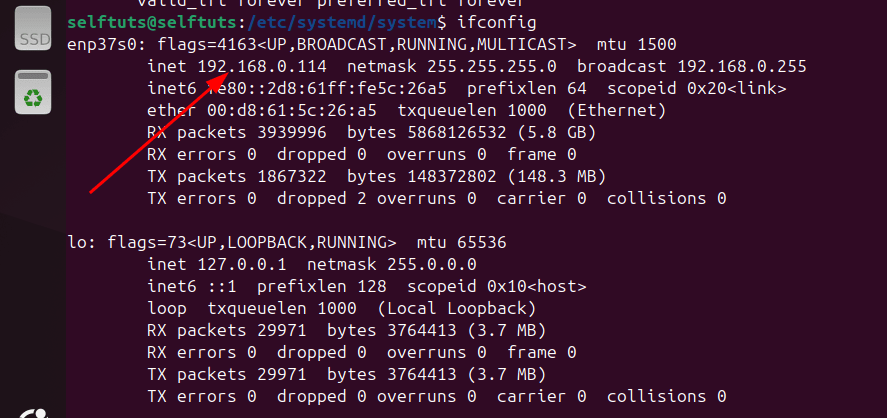
In my Ubuntu machine you can see that the IP address is 192.168.0.114
Access AI Server from Another Device (Mac)
Now you can call the Ollama server from your another device. In my case it is MacBook Air M2. I will open the terminal and will try to run the below command
Note you need to put IP address of your Ubuntu Machine
curl http://192.168.0.114:11434/api/tagsIf you are getting success output then it means your Ollama/AI server on the Ubuntu machine is accessible. Output for my Ubuntu is
Note the output for your machine will differ
{
  "models": [
    {
      "name": "qwen3:8b",
      "model": "qwen3:8b",
      "modified_at": "2026-02-19T01:08:28.284686321+05:30",
      "size": 5225388164,
      "digest": "500a1f067a9f782620b40bee6f7b0c89e17ae61f686b92c24933e4ca4b2b8b41",
      "details": {
        "parent_model": "",
        "format": "gguf",
        "family": "qwen3",
        "families": [
          "qwen3"
        ],
        "parameter_size": "8.2B",
        "quantization_level": "Q4_K_M"
      }
    }
  ]
}Find Models Running on your Remote Ollama
Note you need to use your Ubuntu Machine IP address. The response may differ in your case.
curl http://192.168.0.114:11434/v1/models{
"object": "list",
"data": [
{
"id": "qwen3:8b",
"object": "model",
"created": 1771443508,
"owned_by": "library"
}
]
}Run Model Remotely
You can use the curl command to call the model from your machine. I am using my IP
curl http://192.168.0.114:11434/api/generate -d '{
  "model": "qwen3:8b",
  "prompt": "Say Hello to me"
}'Best Practices
Use GPU if available
Always use GPU this will increase the performance of you AI models
Keep Ollama running via systemd
sudo systemctl enable ollamaUse lightweight models for older hardware
Recommended Models for older hardware are
- phi3:mini
- qwen2.5:7b
- llama3:8b
Ensure network access enabled
Environment="OLLAMA_HOST=0.0.0.0:11434"Common Mistakes and Fixes
Mistake 1: Cannot access from other device
Fix is to edit the systemctl for ollama and expose the Ollama host
sudo systemctl edit ollama
Environment="OLLAMA_HOST=0.0.0.0:11434"Mistake 2: Models not visible
Check the models list using
ollama listMistake 3: Port already in use
Check the status of the port
ss -lntp | grep 11434Advanced: Use from Python
Example for Python
import requests
response = requests.post(
    "http://192.168.0.114:11434/api/generate",
    json={
        "model": "qwen2.5:7b-instruct",
        "prompt": "Explain Docker"
    }
)
print(response.json())FAQs
Can I use an old laptop for this?
Yes. Even 8GB RAM systems work. GPU improves performance.
Do I need internet after installing models?
No. Models run fully offline.
Can multiple devices connect simultaneously?
Yes. Ollama supports multiple clients.
Is it safe?
Yes, if used within your WiFi network. Avoid exposing to internet unless secured.
Can I use this with Claude Code?
Yes. Claude Code can connect to Ollama server.
Conclusion
You don’t need expensive cloud AI anymore. Your old Ubuntu machine can become a powerful AI server.With just a few commands, you can easily do below things
- Run AI models locally
- Access them from any device
- Save money
- Build powerful AI tools
This is the future of developer workflows.
 Raj Ranjan