If you already use Ollama to run AI models locally, you can connect those models to OpenCode and use them for agentic coding. The best part is that you do not need to configure Ollama separately for every project. OpenCode supports a global configuration, which means you can configure Ollama once and then use your local models from OpenCode in any project.
In this tutorial, we’ll connect OpenCode to a local Ollama model using a global configuration. For this example we will use qwen3-coder:30b but you can use any compatible model available in your Ollama installation.
qwen3-coder:30bPrerequisites
Before continuing, make sure you already have:
- Ollama installed
- OpenCode installed
- At least one model downloaded in Ollama
How the Setup Works
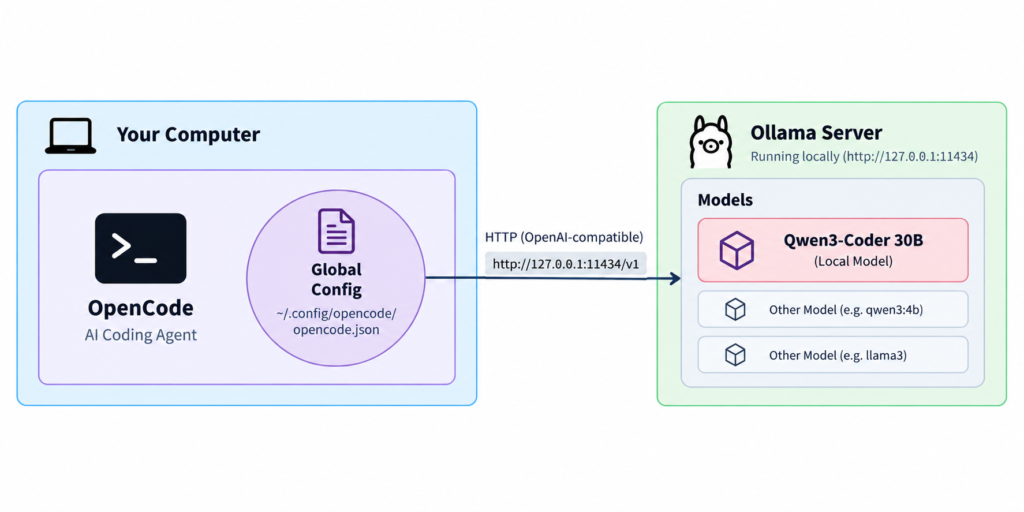
There are three important components here.
- OpenCode provides the coding-agent environment and tools.
- Ollama runs the LLM locally and exposes an API that applications can use.
- Qwen3-Coder is the actual coding model being executed by Ollama.
Once OpenCode knows where Ollama is running and which model to use, it can communicate with your local model.
Verify Ollama is Running
Before connecting OpenCode, let’s verify that the Ollama API is available. you need to run the below command from the terminal where Ollama is running
curl.exe http://127.0.0.1:11434/api/tagsYou should receive JSON containing your installed models. If you can see your model here, Ollama is running correctly and its local API is accessible.
{
  "models": [
    {
      "name": "qwen3-coder:30b",
      "model": "qwen3-coder:30b",
      "modified_at": "2026-09-09T09:11:56.599224+05:30",
      "size": 18556700761,
      "digest": "06c1097efce0431c2045fe7b2e5108366e43bee1b4603a7aded8f21689e90bca",
      "details": {
        "parent_model": "",
        "format": "gguf",
        "family": "qwen3moe",
        "families": [
          "qwen3moe"
        ],
        "parameter_size": "30.5B",
        "quantization_level": "Q4_K_M",
        "context_length": 262144,
        "embedding_length": 2048
      },
      "capabilities": [
        "completion",
        "tools"
      ]
    },
    {
      "name": "qwen3:4b",
      "model": "qwen3:4b",
      "modified_at": "2026-03-02T20:15:30.6406779+05:30",
      "size": 2497293931,
      "digest": "359d7dd4bcdab3d86b87d73ac27966f4dbb9f5efdfcc75d34a8764a09474fae7",
      "details": {
        "parent_model": "",
        "format": "gguf",
        "family": "qwen3",
        "families": [
          "qwen3"
        ],
        "parameter_size": "4.0B",
        "quantization_level": "Q4_K_M",
        "context_length": 262144,
        "embedding_length": 2560
      },
      "capabilities": [
        "completion",
        "tools",
        "thinking"
      ]
    }
  ]
}Create the Global OpenCode Configuration
You could create an opencode.json inside each individual project. But if you want to use Ollama across multiple projects, that quickly becomes repetitive. Instead, configure it globally once.
OpenCode’s global configuration location is:
~/.config/opencode/opencode.jsonOn Windows, this will normally correspond to:
C:\Users\<YOUR_USERNAME>\.config\opencode\opencode.jsonYou may need to create the directories if they don’t already exist.
Configure Ollama as an OpenCode Provider
Put the following inside the global opencode.json
{
  "$schema": "https://opencode.ai/config.json",
  "provider": {
    "ollama": {
      "npm": "@ai-sdk/openai-compatible",
      "name": "Ollama (local)",
      "options": {
        "baseURL": "http://127.0.0.1:11434/v1"
      },
      "models": {
        "qwen3-coder:30b": {
          "name": "Qwen3 Coder 30B"
        }
      }
    }
  },
  "model": "ollama/qwen3-coder:30b"
}This small configuration is essentially the bridge between OpenCode and your locally running Ollama server.
Understanding the Configuration
Schema
"$schema": "https://opencode.ai/config.json"The schema tells editors and tooling that this file follows the OpenCode configuration format. It helps with things such as validation and autocomplete.
Provider Configuration
The provider section is the most important part of this configuration.
"provider": {
  "ollama": {
    "npm": "@ai-sdk/openai-compatible",
    "name": "Ollama (local)",
    "options": {
      "baseURL": "http://127.0.0.1:11434/v1"
    },
    "models": {
      "qwen3-coder:30b": {
        "name": "Qwen3 Coder 30B"
      }
    }
  }
}Whenever we define a provider in OpenCode, we essentially need to tell OpenCode three things:
Which provider are we using?
Here we are defining a provider called:
ollamaand giving it the display name:
Ollama (local)How should OpenCode communicate with that provider?
"npm": "@ai-sdk/openai-compatible"This tells OpenCode to use an OpenAI-compatible adapter to communicate with Ollama. It does not mean that we’re using OpenAI models. Ollama supports an OpenAI-compatible API, allowing OpenCode to communicate with our local Ollama server through the same API style.
Where is the provider running, and which models does it provide?
"options": {
  "baseURL": "http://127.0.0.1:11434/v1"
}The baseURL tells OpenCode where the Ollama server is available. Finally, we list the models that we want to make available through this provider:
"models": {
  "qwen3-coder:30b": {
    "name": "Qwen3 Coder 30B"
  }
}So the entire provider configuration can be understood as:
Provider
│
├── Name
│   └── Ollama
│
├── Adapter
│   └── OpenAI Compatible
│
├── Base URL
│   └── http://127.0.0.1:11434/v1
│
└── Models
└── qwen3-coder:30bIf you have multiple Ollama models, you can list them all under the
modelssection.
Default Model
After defining the provider and its available models, we tell OpenCode which model should be used by default:
"model": "ollama/qwen3-coder:30b"OpenCode uses the format:
provider/modelTherefore:
ollama/qwen3-coder:30b
   │          │
Provider Modelso whenever you will open the open code it will use the qwen3-coder:30b model from the Ollama provider by default.
Start OpenCode on any project and validate the Ollama integration
Start the OpenCode inside your project and see the details listed in the OpenCode screen
opencode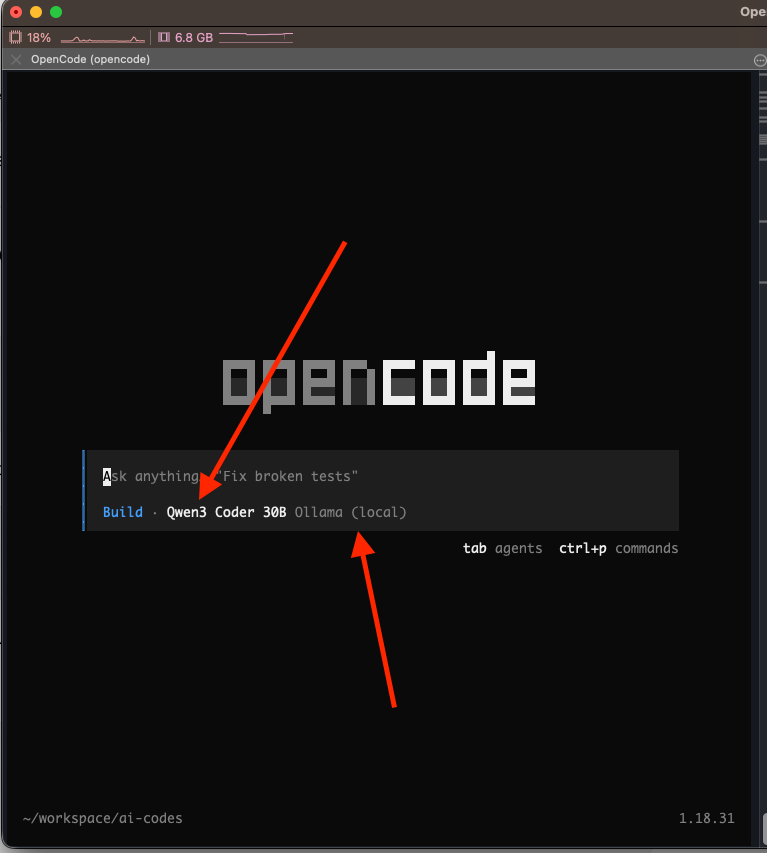
Test the Local Model
Now let’s verify that the integration actually works. Inside a test project, ask OpenCode:
Create a file called hello.py that prints
"Hello from my local AI coding agent"If everything is configured correctly, OpenCode should invoke your local model and create the file. You can see in the below video that the hello.py file was created.
Conclusion
Connecting OpenCode to Ollama does not require adding configuration to every repository. You can do it once in the global configuration. The will help you to setup your own local agentic development.
 Raj Ranjan