I was using a qwen3-coder:30b local model to build an application when the attempt ran into errors. Before changing the model, I wanted to investigate one possible cause: was its context window too small for the task? In this walkthrough, we’ll check the active context, create a custom Ollama model configuration with a larger window, connect it to OpenCode, and repeat the task to see what changes.
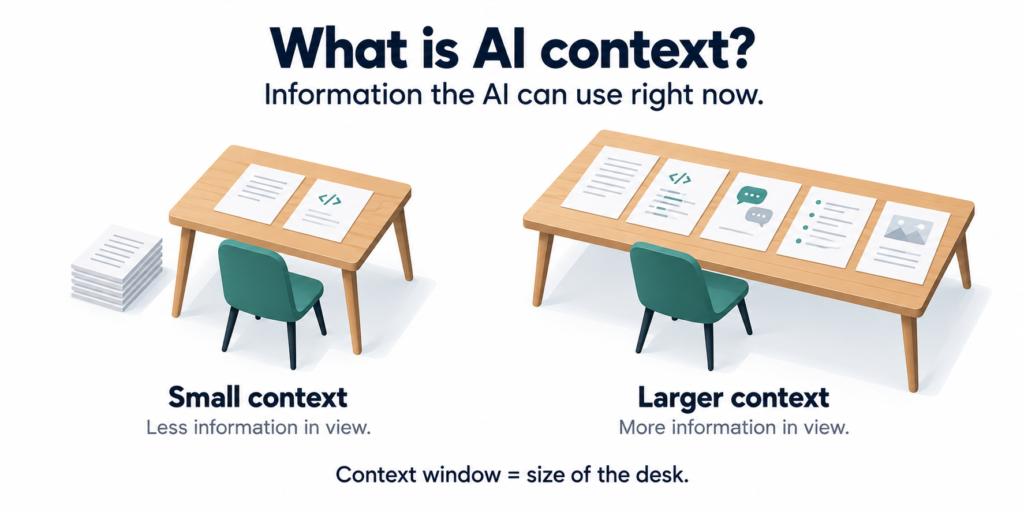
What is Context in AI Models
Context is the information an AI model can keep in view while answering your question. It can include your instructions, earlier messages, and any code or documents shared with it. Think of it like a desk. A small desk holds only a few pages at a time. A bigger desk lets you spread out more pages and refer to them together. The model’s context window is the size of that desk.
Why context matters when building an application
Think of context as the model’s working space. It holds the information available when the model produces its next response. With a coding agent, that information can include your requirements, instructions, source code, previous messages, and command output. Even a short request can lead to a large conversation once the agent starts reading files and fixing errors.
When that information no longer fits, some content may be dropped, compacted, or rejected, depending on the tools involved. The agent can lose details it needs to continue correctly.
However, errors alone don’t prove that context is the problem. Broken dependencies, unsupported tool calls, and ordinary coding mistakes can produce failures too. The experiment here is to change the context and compare the results.
How to find the Context Size of Model in Ollama
First, list the models installed in Ollama:
ollama listThis will give the list of models present on your system
➜ ollama list
NAME                      ID              SIZE      MODIFIED
qwen3-coder:30b           06c1097efce0    18 GB     2 weeks ago
qwen3:4b 359d7dd4bcda 2.5 GB 6 months agoRun the model
ollama run qwen3-coder:30bWhile it is loaded open another terminal and run the below command
ollama ps➜ ollama ps
NAME ID SIZE PROCESSOR CONTEXT UNTIL
qwen3-coder:30b 06c1097efce0 19 GB 78%/22% CPU/GPU 4096 4 minutes from nowLook at the CONTEXT column and record the value. Here you can see that the context is 4096. This means that the model and work upto 4096 tokens at a time.
Update the context of existing Model
Create a plain-text file named Modelfile and put below contents in it
FROM qwen3-coder:30b
PARAMETER num_ctx 16384FROMselects the existing model.num_ctxsets the context window- we will increase the context upto 16384
This creates a configuration based on the same model weights. It does not retrain the model or increase its parameter count.You need to be cautious while increase the model context window. A larger context needs additional memory.
Create New Model with Updated Context
From the directory containing the Modelfile run the below command. This will create a new model entry in the Ollama
ollama create qwen3-coder-16k:latest -f ./ModelfileCheck the new Ollama Model listing
ollama list➜ ollama list
NAME ID SIZE MODIFIED
qwen3-coder-16k:latest 3441246df47b 18 GB 5 seconds ago
qwen3-coder:30b 06c1097efce0 18 GB 2 weeks ago
qwen3:4b 359d7dd4bcda 2.5 GB 6 months agoYou can see the qwen3-coder-16k:latest in the list above which was created 5 seconds ago.
Run the new Model and validate the context size
Run the model using below command
ollama run qwen3-coder-16k:latestThen run the process details command
ollams psThis will give the output as
➜ ollama ps
NAME                      ID              SIZE     PROCESSOR          CONTEXT    UNTIL
qwen3-coder-16k:latest 3441246df47b 20 GB 79%/21% CPU/GPU 16384 3 minutes from nowConfirm that the new model is loaded and its CONTEXT value is 16384. This is how you increase the context on your model in Ollama
 Raj Ranjan