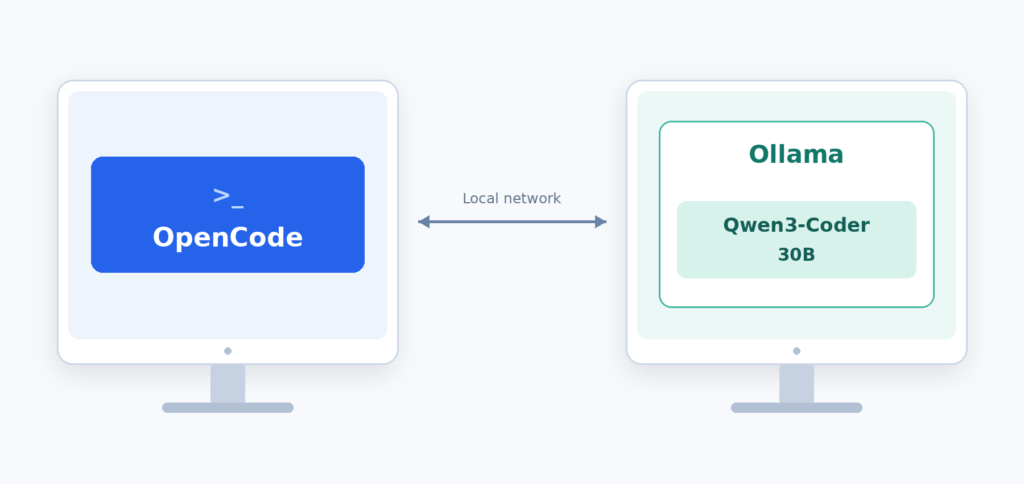
A local AI coding setup lets you work with an AI model hosted on hardware you control. With OpenCode handling the development workflow and Ollama serving the model, you can ask the agent to create files, implement features, and investigate errors. This guide uses two computers on the same private network, a development computer running OpenCode and a separate PC running Ollama with Qwen3-Coder 30B. We’ll connect them, configure the model’s context window, and build a to-do application with due dates and reminders.
Prerequisites
Before you begin, make sure you have:
- Ollama installed to run the model.
- Qwen3-Coder 30B downloaded through Ollama.
- Enough RAM and a compatible GPU. This guide uses 32GB RAM and a GPU with 6GB VRAM; performance depends on the model and context size.
- Node.js and npm installed for the OpenCode installation command below.
We will first try to understand the components that we are going to use
What is OpenCode?
OpenCode is an AI coding agent that works with your project. It gives a model access to tools for reading files, editing code, and running terminal commands. You describe a task, and OpenCode coordinates the actions needed to work on it. In this setup, OpenCode runs on the development computer. That is also where the project files and development tools live.
What is Ollama?
Ollama runs and serves AI models. It loads a downloaded model and exposes an API that applications such as OpenCode can call. Here, Ollama runs on the separate model server. OpenCode sends requests to that server over the private network.
What is Qwen3-Coder 30B?
Qwen3-Coder 30B is the coding model used in this guide. It interprets instructions and generates code, explanations, and requests to use tools. The “30B” refers to approximately 30 billion total parameters the numerical values learned during training.
What is agentic AI coding?
Agentic AI coding combines a model with tools and a feedback loop. The model can request an action, examine its result, and decide what to do next.
For example, when asked to add reminders to a to-do app, the agent can read the existing code, edit the relevant files, and run a check. If the check fails, its output becomes context for the next attempt. You remain responsible for reviewing the changes and verifying the behaviour.
Architecture: two computers, one coding workflow
OpenCode performs development actions on Computer A. Ollama runs model inference on Computer B.
- You enter a request in OpenCode on the development computer.
- OpenCode sends the request and relevant project context to Ollama.
- Qwen3-Coder generates a response or a tool request.
- OpenCode executes permitted actions on the development computer and sends the results back for the next step.
The model weights stay on the server. Relevant code and tool output travel across the private network. Here, local means self-hosted on your own machines, without a cloud model API.
Let’s start with the setup process now
Install OpenCode
On the development computer, open a terminal and run:
npm install -g opencode-aiThen confirm the installation:
opencode --versionThis will output the current version of opencode installed on your machine
Install qwen3-coder:30B Model using Ollama
First check the already existing models on your Ollama
ollama listIf qwen3-coder:30b is already there, you can skip the download. Otherwise, run:
ollama pull qwen3-coder:30bStart a conversation with the model:
ollama run qwen3-coder:30bTry a small request:
Write a JavaScript function to add two numbers
While the model is loaded, run this in another terminal:
ollama psPay attention to two columns:
- PROCESSOR: how the model is split between CPU and GPU.
- CONTEXT: the context length currently allocated to it.
Create a todo application using the local AI Agentic Setup
On the development computer, create a project folder and open OpenCode inside it
mkdir local-todo-app
cd local-todo-app
opencodeWe’ll use plain HTML, CSS, and JavaScript. This keeps the example small and avoids downloading a framework during the build. The prompt that we are going to use is
Build a to-do app in this directory using HTML, CSS, and JavaScript.
Do not use external libraries, CDNs, or remote APIs.

The app should let me:
- Create, edit, and delete tasks.
- Mark tasks complete or incomplete.
- Filter all, pending, and completed tasks.
- Keep tasks after a page refresh using localStorage.

Use a responsive layout with labelled inputs and keyboard access.
Briefly explain your plan, then create the files.
Tell me how to serve and open the app locally.Follow the responses from the Model and this will help you build the application.
 Raj Ranjan